
How to Fix CS2 Rubberbanding: Complete Guide to Lag & Network Issues
 el-pollo-diablo
Smooth gameplay is key to winning a crucial round. Still, sometimes it’s impossible due to the different circumstances. One of them is CS2 rubberbanding. As a result, players cannot hit the target, and their movement is laggy, which definitely isn’t the best experience for any online game. But what is the reason for all of that? How can we diagnose and fix it? Let’s find the answers in today’s guide and optimize hardware and network together!
In article you will find:
What is Rubberbanding in CS2?
First things first, we need to understand CS2 rubberbanding to fix it. That said, it’s a direct result of issues players have with their network. It’s also the worst experience that players may have during online sessions. The problem is that during rubberbanding, the player’s model “jumps” back after sprinting repeatedly. It looks like something pushes you while you are trying to run or shoot.

As we mentioned earlier, the key lies in network issues. It’s how everything connects with a server and sends information to it. In other words, you see your character already rush B Plant or shoot the opponent, but the game itself doesn’t register it. In the end, there is always defeat in such a situation.
Causes of Rubberbanding in CS2?
The good news is that there are not many causes of CS2 rubberbanding. For example, one of them is network latency. Players might see these moments, then the ping suddenly increases, and the game becomes jerky. The other cause is server issues. It sounds better since it’s not a personal problem, but rather for all players on the server.
Still, there could be outdated hardware that cannot run CS2 smoothly. On the other hand, the problem of rubberbanding could lie in software, such as drivers or game files.
How to Diagnose Rubberbanding in CS2?
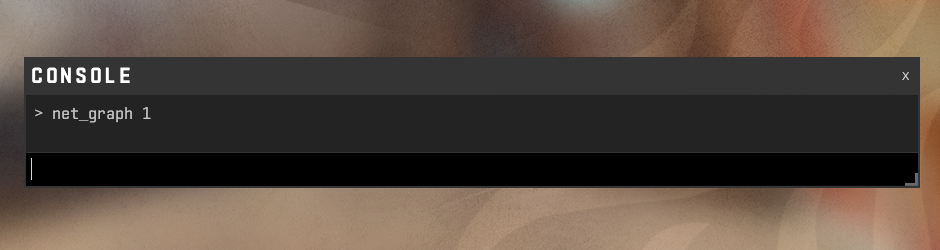
Undoubtedly, it’s useful to know how to fix CS2 rubberbanding because it could help to have a smooth experience in CS2. But first, players need to understand how to diagnose such problems. To make it clear, let’s explore each scenario separately.
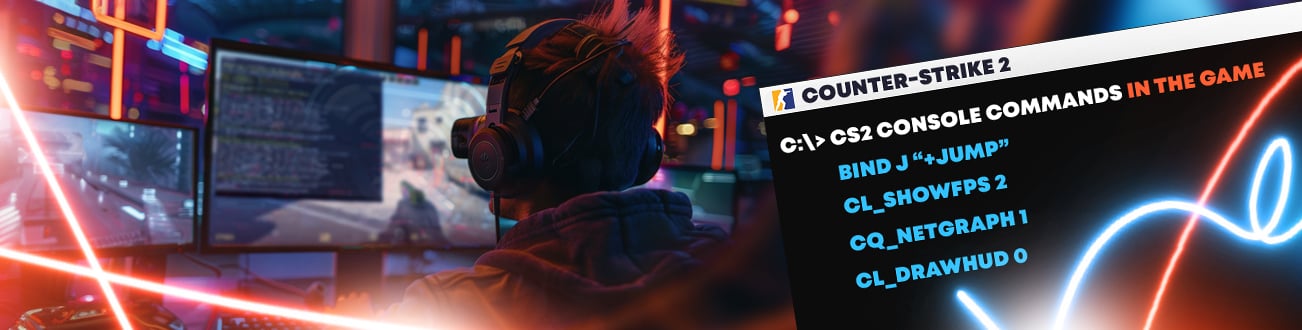
At the beginning, it’s better to use the net_graph 1 console command. It shows players real-time network stats. One of them is ping, which should be lower than 50 ms. This console command also shows packet loss, which must be 0%, because even 1% can cause issues. Lastly, net_graph 1 shows var, which indicates the smoothness of the player’s frame delivery and server performance, and should be low.
Also, it might help if players use tools to check their internet speed. It shouldn’t be lower than your provider promises. Since it’s a crucial detail in online gaming, it’s better to contact the support team, upgrade the user’s plan, or even switch providers.
One more thing that players can do is to use online tools to test their connection stability. Using them might help see an issue in real time.
How to Fix Rubberbanding in CS2?
So, how to fix CS2 rubberbanding? How to make the game smoother and more stable? In short, there is a list of things players can do to return to a nice gameplay experience without issue. And the first step is simply reinstalling CS2. It might look absurd, but reinstalling is one of the most effective ways to fix CS2 rubberbanding.
Another way to fix CS2 rubberbanding is to check firewall settings. Players need to open Windows firewall settings and check the rules for CS2. Usually, the system allows only inbound communications, but you need to allow outbound communications as well (with a new rule).
Also, the problem could lie in the in-game settings. First, players should reduce their graphics settings. The second one could help if they use the cq_netgraph 1 console command, which checks whether packet loss is causing rubberbanding.
As we mentioned before, CS2 rubberbanding could be caused by outdated graphics drivers. At the same time, users need to install CS2 on the same SSD as the operating system for better performance.
Last but not least, players can fix CS2 rubberbanding with a simple router restart. If it doesn’t help, the issue could lie on the server. The only way to fix it is to connect to another server with the lowest ping.
To Sum Up
CS2 rubberbanding isn’t the best experience players might have during the session. To be honest, no one wants to miss a guaranteed headshot just because of some lag. Still, with our guide, users can easily find and fix the issue without any issues. Within a short time, you will return to smooth gameplay and win matches as always!
Remember to explore other guides on Hellcase Blog. Here, players can find useful CS2 tips about upgrading sound or video settings, lists with top skins for different budgets and styles, and strategy tips for different maps. Have fun and win more matches together with us!
FAQ
Players should check the internet connection. Also, they must close background programs, and limit other devices on the same network. Lastly, users can try to reinstall CS2 or to set lower graphics settings.
Players must lower Shadows, disable V-Sync, and use FidelityFX (FSR). Also, it could be useful to update GPU drivers, close background programs, and enable High Performance power mode. Lastly, use -high and +fps_max 0 launch options.
Players must switch to Ethernet and restart the router.It’s also important to change “Buffering to smooth over packet loss” to 1 or 2 packets in Settings – Game. The closing background programs and setting “Max Acceptable Game Traffic Bandwidth” to Unrestricted could help as well.
Players need to update their GPU drivers. Also, it could help to use the -high launch option to disable Fullscreen Optimisations. Lastly, it’s better to check the internet connection and to use a wired connection instead of Wi-Fi.

El Pollo Diablo is the author of articles and game guides. He knows the answers to all your questions about game mechanics, updates, and tournaments.