
How to Hide HUD in CS2: Improve Your Gaming Experience
 el-pollo-diablo
Games are an integral part of the modern world. They’ve redefined everyday words like level or boss—but for many players, the real boss fight starts in the settings menu. Customizing your game can make all the difference, especially in a competitive shooter like Counter-Strike 2.
One of the lesser-known yet powerful tweaks you can make is hiding the HUD (Heads-Up Display). Whether you’re looking for cinematic screenshots, cleaner content for your CS2 playback, or just want to minimize distractions, learning how to hide HUD in CS2 can seriously improve your experience. In this article, we’ll walk you through how to remove the HUD in CS2, why it matters, and how it compares to traditional CS2 (CS:GO) HUD settings.

In article you will find:
What IS HUD in CS2?
The HUD (Heads-Up Display) in CS2 is the visual overlay that presents essential in-game information directly on your screen. It’s a constant companion during gameplay, showing critical details like:
- Kill feed
- Health and armor indicators
- Current weapon and ammo count
- Radar (mini-map)
- Amount of money
- Match score
- Round timer
- Number of alive players
While these elements are vital for situational awareness in competitive matches, there are moments when hiding the HUD in CS2 becomes useful—especially during demo playback, cinematic recordings, or for cleaner screenshots. It might seem like a basic feature, but knowing how to remove or tweak the HUD can enhance your gaming experience or content creation workflow.
Reasons to Hide the HUD in CS2
Hiding the HUD in Counter-Strike 2 can provide several benefits or improve the gameplay in a variety of ways. After all, when you remove the HUD, the picture of the game will become completely different and will be perceived differently. Here are some reasons why players might want to hide the HUD:
Immersive Gameplay
Removing the HUD will create a more immersive gaming experience by eliminating distracting elements on the screen. This way, you will be more focused on the game world and will be able to fully enjoy its visual effects.
The game is more realistic when the HUD is hidden, and you can feel like a real special forces soldier performing a difficult task to destroy a group of enemies. This way, you will be able to get more into the atmosphere of the game and fully play out the action scenario in a real scenario.
Increased Focus on Crosshair and Surroundings
When the HUD is off, you can focus entirely on your aim, which will help you aim at the enemy better and react faster. Removing the support elements will also increase your viewing area, which is definitely a plus.
Moreover, it can help you develop your gaming skills. You’ll learn to pay more attention to your environment, monitor your ammo usage more carefully, and rely on audio cues and other environmental indicators. That will be a good challenge for experienced players and can help new players use non-visual means to improve their skills.
Cinematic or Content Creation Purposes
Another advantage of playing without a HUD is the ability to take screenshots or record gameplay footage without visual clutter. The complete absence of color will make the picture much more cinematic and aesthetic, undoubtedly attracting more attention from connoisseurs.
We’ve sorted out the advantages. Now, let’s see what ways there are to hide HUD in CS2.
How to Hide CS2 HUD?
Hiding the HUD in CS2 is very simple. There are two console commands for this. The first one, cl_draw_only_deathnotices 1, completely removes all the damage, leaving only the kill feed. You can use it when playing in any game mode.
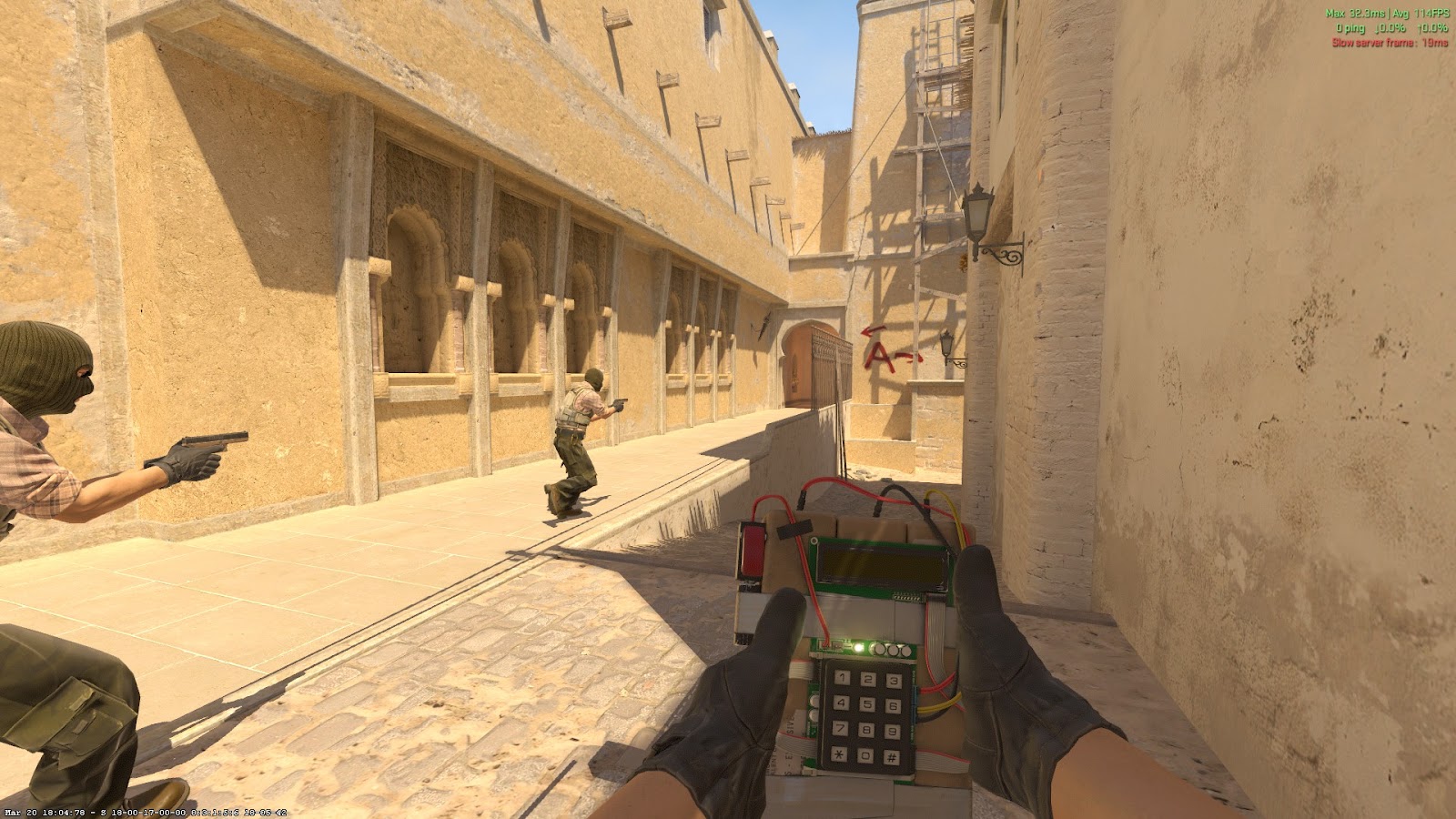
The second, cl_drawhud 0, completely covers the cheat, including kill feed, but this
command only functions when the sv_cheats 1 command is already activated. As a result, you can use it only when playing with bots or on a local server.
Instead of removing the HUD completely, you can customize it to your preferences.
Best HUD setting
There are only a few settings for the HUD, but its default settings slightly reduce player visibility. To go to the HUD settings, go to the game settings, select the “game” tab and then “HUD,” and set the values as shown in the screenshot:
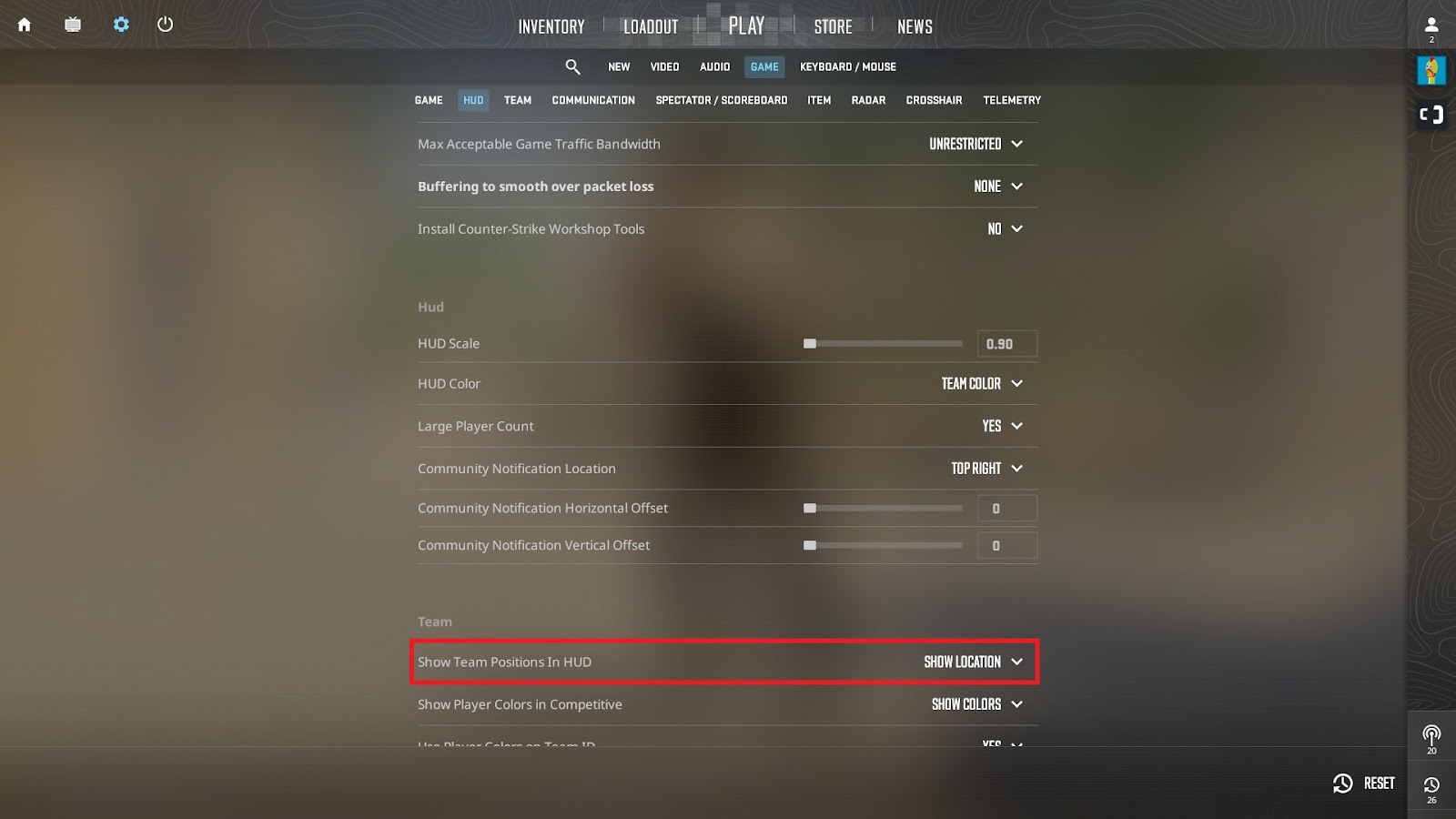
Please note the option highlighted in red. This function turns off the display of your ally’s inventory. There are often situations in the game when you may not see your opponent’s model due to this HUD element, so we strongly recommend setting this value.
Wrapping Up!
Customizing your gaming experience in Counter-Strike 2 by hiding the HUD can enhance immersion and performance. Removing distractions allows a more profound focus on gameplay, honing skills, and fostering a more realistic experience.
You can also adjust HUD to suit your preferences. Whether seeking challenge or cinematic aesthetics, experimenting with HUD options in CS2 can offer a fresh perspective and elevate your gaming enjoyment. For more tips and tricks, follow our blog!
FAQ
Type “cl_draw_only_deathnotices 1” in the console and you will hide the game HUD.
The smaller HUD scale value is 0.90 points
Before taking a screenshot type “cl_drawhud 0” in-game console to hide HUD cs2
To turn off the HUD in a CS2 replay, press: Shift + F1 — then uncheck the “Enable HUD” option from the menu that appears. This will hide all UI elements during the replay.
To change the color of your HUD in CS2, open the game and go to the Settings menu. Navigate to the Game tab, scroll down to the HUD section, and find the “HUD Color” option. Click on the dropdown menu and select your preferred color. The change will apply instantly without needing to restart the game.
To turn the HUD back on in CS2, press Shift + F1 during a replay to open the replay controls, then check the box labeled “Enable HUD”. This will restore all the UI elements on your screen.

El Pollo Diablo is the author of articles and game guides. He knows the answers to all your questions about game mechanics, updates, and tournaments.