
CS2 Lag vs FPS Drops: Stop Fixing The Wrong Problem
 radoslaw-davidovic
Most Counter-Strike 2 players blame the same culprit for every performance issue. They tweak graphics settings when the real problem is their network. They swap routers when their CPU is bottlenecking. They buy new RAM when their ping is simply unstable. The game feels bad, so they assume they know why.
The truth is simpler: Lag and FPS drops are completely different problems that demand opposite solutions. Understanding which one is actually ruining your matches will save you hours of frustration and prevent you from wasting time on fixes that don’t work.

In this guide, you’ll learn exactly how to tell the difference between network lag and FPS drops in CS2. You’ll also learn how to diagnose each problem using built-in tools, spot the real culprit, and fix it fast. This isn’t theory. It’s practical diagnosis that will make your next match feel worlds better.
In article you will find:
What is network lag in CS2?
Network lag is a communication delay between your PC and the Valve servers. When you move your mouse, click to shoot, or throw a grenade, that action travels as a data packet to the server.
If your connection is slow or unstable, that packet arrives late. The server receives your input after the moment has passed. The game looks behind your actual movements.
Lag causes your shots to register late. It makes enemies peek around corners before you see them move. It creates the feeling that you’re always reacting one step behind.
The core issue with lag isn’t speed, it’s consistency. Your internet connection might be fast enough for downloading 100 Mbps, but that doesn’t mean your gaming packets arrive on time.
Lag has three main components: ping, jitter, and packet loss. Each one degrades performance differently, and fixing one won’t fix the others.
Understanding Ping, Jitter, and Packet Loss
Ping is the round-trip time for a packet to travel from your PC to the server and back, measured in milliseconds. A ping of 30ms means your action takes 30 milliseconds to reach the server.
For competitive CS2 play, a ping under 50ms feels responsive. Between 50-100ms is playable but noticeable. Above 100ms, the game feels sluggish and harder to control.
Jitter is the variation in ping over time. Imagine your ping bouncing between 20ms, 50ms, 25ms, 80ms, 40ms within seconds. That unpredictable fluctuation is jitter.
A stable 60ms ping is often more playable than an unstable 30ms ping that spikes constantly. Jitter breaks the game’s lag compensation algorithm. It can’t predict where players will be if the delay keeps changing.
Packet Loss occurs when data packets fail to reach the server. If 2% of your movement packets get dropped, the server receives incomplete information about your position. The game sees you teleport. It misses your shots. It thinks you’re somewhere you’re not.
Even 1% packet loss is noticeable in CS2. Anything above 2% makes competitive play frustrating. The game’s sub-tick system makes this worse because late-arriving packets are now treated similarly to lost packets.
What are FPS Drops?
FPS drops are a rendering problem, not a network problem. FPS measures how many frames your GPU renders per second. Low FPS means your PC is struggling to keep up with what’s happening on screen.
FPS drops feel similar to lag, the game stutters, movement looks choppy. Your crosshair feels “heavy” when you try to aim, but the cause is hardware, not internet.
Your CPU, GPU, RAM, storage speed, drivers, background apps, and system temperature all affect FPS. If any of these components can’t keep pace with what CS2 demands, frames drop.
The difference is critical: you can have perfect network stats and still experience FPS drops if your hardware is bottlenecking. Conversely, you can have high FPS and still feel like you’re playing in mud if your network is unstable.
Frame Time vs. Average FPS
CS2 players often focus on the wrong metric, they chase a big FPS number. But what matters more is frame time consistency.
Frame time is how many milliseconds each individual frame takes to render. A game with 200 average FPS but inconsistent frame times (sometimes 5ms, sometimes 30ms) will feel stuttery.
The same game at 120 stable FPS with consistent frame times will feel smooth. This is why modern CS2 tools like Telemetry show frame time graphs instead of just a number.
A flat line is perfect. A line that spikes up and down tells you the story of your stutters.
How to tell the difference: The diagnostics guide
The easiest way to diagnose your problem is to enable CS2’s built-in Telemetry HUD. This replaces the old net_graph and gives you real-time visibility into both network and hardware metrics.
Step 1: Enable CS2 Telemetry
Open your CS2 settings. Go to the Game tab. Scroll down to Telemetry. Set “Show Network Connection Issues” to “Always” so you can monitor during matches.
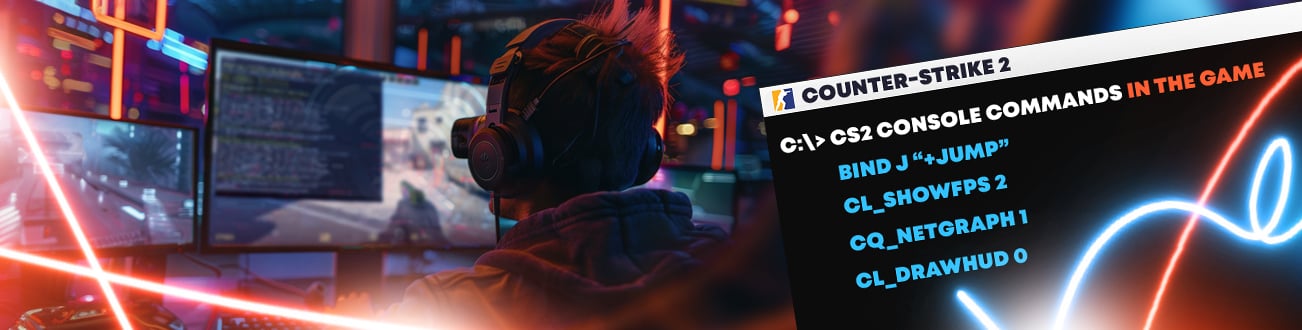
You can also enable the full telemetry HUD with these console commands:
- cl_hud_telemetry_frametime_show 2 — displays frame time graph
- cq_netgraph 1 — shows network graph with ping, jitter, packet loss
- cl_showfps 1 — displays basic FPS counter
Once enabled, these will appear on your screen during live matches. Check them during intense firefights when you feel most laggy.
Step 2: Watch the Graphs During Gameplay
Start a competitive match and play normally. When you feel lag or stuttering, stop and look at the metrics. This is the key moment to diagnose.
If your network graph is flat and stable but your frame time graph is spiking, your problem is FPS drops. Your network is working fine. Your hardware is stuttering.
If your frame time is stable but your ping is jumping around or showing red spikes, your problem is network lag. Your PC is rendering fine. Your network is unstable.
If both are spiking at the same moment, you have both problems. This is less common but very frustrating.
Step 3: Check the Three Critical Numbers
Three numbers tell the whole story. Look for these in your Telemetry HUD or net_graph:
- Loss: Percentage of packets not reaching the server (goal: 0%)
- Choke: Packets your client holds back due to bandwidth limits (goal: 0%)
- Ping Variance: The jitter around your average ping (goal: below 3-5ms)
Even 1-2% loss is noticeable. A ping variance above 10ms will make duels feel unreliable. If these numbers spike when you feel lag, you have a network problem. If they’re stable when you lag, the issue is local hardware.
Network Lag: Diagnosis and Fixes
If your Telemetry shows high ping, jitter, or packet loss, your network is the culprit. Here are the targeted fixes:
Quick Network Diagnostics
Run a simple ping test first. Open Command Prompt and type:
ping 8.8.8.8 -n 50
This sends 50 ping packets to Google’s servers. Look at the results. High packet loss, huge spikes, or timeouts mean you have a network problem outside just CS2.
If you see no packet loss here but you see loss in CS2, the problem might be your specific ISP route to Valve servers. Your internet is fine, but the path to the game server is congested or unstable.
Network Lag Fixes
The most common network lag causes and their fixes:
- Wi-Fi interference: Switch to Ethernet cable immediately. Wi-Fi is the #1 cause of jitter in competitive gaming
- Bufferbloat: Someone is streaming, uploading, or syncing to cloud while you play. Close background apps. Pause downloads and uploads before ranked matches
- Unstable routing: Your ISP’s path to Valve servers is poor. This often happens during peak hours. Wait an hour or switch regions
- High jitter from local network: Check your router placement. Interference from microwaves, cordless phones, or neighboring Wi-Fi can cause spikes
Testing Your Network Under Load
Use a tool like PingPlotter (free version) to test your connection for 10 minutes. This shows you whether jitter happens at idle or only under load.
If jitter only appears when others use the internet, you have bufferbloat. If it’s constant, the problem is likely your ISP routing.
Extreme Network Lag Solutions
If you’ve tried everything and your packet loss or jitter persists even on Ethernet, the problem is likely your ISP’s routing to Valve servers. Some players use network optimization tools to select alternative routes through faster, more stable paths.
A gaming network optimizer analyzes multiple routes in real time and automatically selects the best one for your CS2 connection. This bypasses congested or unstable nodes that your normal ISP routing would use.
FPS Drops: diagnosis and Fixes
If your Telemetry shows smooth ping and low packet loss but your frame time is spiking, your hardware is the problem. Here’s how to fix it:
Quick Hardware Diagnostics
Download a tool like MSI Afterburner or HWInfo. Start it before launching CS2. Monitor your CPU, GPU, and RAM usage during a match.
If your GPU usage is consistently above 95% and your frame time spikes, your graphics card is the bottleneck. If your CPU is at 100%, your processor is too weak for your graphics settings.
If RAM usage exceeds your available memory, your PC is swapping to disk (extremely slow). Check your component temperatures. If your GPU reaches above 85C or your CPU exceeds 95C, thermal throttling is reducing performance.
Graphics Settings Fixes
CS2 is less demanding than many modern games, but volumetric smoke, particle effects, and high resolution still hit your GPU hard.
Start here to gain FPS:
- Set texture quality to medium or low
- Disable shadow detail or set it to low
- Turn off motion blur
- Disable anti-aliasing or set it to FXAA only
- Reduce particle detail, especially in smoke
These four settings alone are responsible for most FPS drops in CS2. Many players don’t realize that maxing graphics settings doesn’t improve visibility. It just makes the game stutter.
Background App Fixes
Discord, OBS, Chrome tabs, Windows backups, and even Steam overlays consume CPU and GPU resources. If you’re recording, streaming, or have Discord streaming active, you lose 20-30% of your GPU performance immediately.
Close everything except CS2 before competitive matches. If you need Discord for voice, mute the client window and minimize it.
Driver Updates
Outdated graphics drivers are a hidden FPS killer. Nvidia and AMD release new driver optimizations regularly. Old drivers miss shader compilation optimizations, texture cache improvements, and new rendering paths that newer drivers include.
Update your GPU driver first. This single fix resolves FPS drops for many players. Nvidia users can use GeForce Experience. AMD users should get drivers from AMD’s official site.
Windows Optimization
Windows runs hundreds of background processes by default. Many consume CPU and disk I/O. Services like cloud backup, indexing, updates, and telemetry can cause stutters.
Use a tool like Chris Titus Tool (free) to safely disable unnecessary Windows services. This frees up resources for gaming. It’s reversible, so if something breaks, you can undo it.
Thermal and Cooling Fixes
Overheating causes thermal throttling, which tanks FPS hard. Check your component temperatures. If your CPU is above 85C or GPU is above 80C during CS2, cooling is the problem.
Solutions include: replacing old thermal paste, cleaning dust from heatsinks and fans, improving case airflow, or simply ensuring your room isn’t too hot. Competition-level CS2 performance demands good cooling.
Comparison Table: Lag vs FPS Drops
| Symptom | Network Lag | FPS Drops |
| Enemy movement looks smooth but delayed | Yes | No |
| Your cursor feels responsive but shots register late | Yes | No |
| Frame time graph is stable | Yes | No |
| Ping graph shows flat line | Yes | No |
| Movement and rendering look choppy | No | Yes |
| Enemies stutter and skip | No | Yes |
| High ping or packet loss in Telemetry | Yes | No |
| Frame time graph spikes up and down | No | Yes |
| Problem happens offline in private servers | No | Yes |
| Problem only appears during online matches | Usually no | Usually yes |
Pro Tips: CS2 Performance Mastery
- Monitor during fights, not menus: Check your Telemetry during actual combat. Lag and stutters happen when the server is busy and particles are flying. Idle menu numbers lie
- Separate your diagnostics: Test network problems offline first. Load into an offline private server and enable cl_showfps. If you get smooth FPS there, your PC is fine and the problem is network
- Ethernet is non-negotiable for competitive: A wired Cat6 cable is one of the cheapest upgrades possible. Wi-Fi introduces 5-15ms of extra latency and constant jitter. If you’re serious about CS2, run a cable to your PC
- Thermal paste matters more than you think: After 2-3 years, thermal paste dries out and degrades. Your CPU temperature climbs. FPS drops without any other explanation. Replacing paste is a 10-minute fix that costs under $5
Common Mistakes Players Make When Fixing CS2 Performance
- Changing video settings when the problem is network jitter: Players see lag, assume it’s graphics, drop all settings to low. The problem was packet loss or unstable routing. Their framerate improved but the lag remains because they fixed the wrong thing
- Using a VPN or routing tool for every lag complaint: Network tools help when your ISP routing to Valve servers is genuinely bad. But many players use them when local network fixes would solve the problem. They add latency and don’t address the real culprit
- Ignoring frame time consistency and chasing average FPS numbers: A player brags about 300 FPS but those frames arrive inconsistently (frame times vary from 3ms to 20ms). Meanwhile, another player runs 144 FPS with rock-solid frame times (6.9ms consistent). The second player will feel infinitely smoother. Chase stability, not numbers
How to Optimize Your CS2 Connection with Better Routing
If your diagnostics show jitter or packet loss that persists even after local network fixes, your ISP routing might be the bottleneck. The path your packets take from your PC to Valve servers isn’t optimized for gaming. It bounces through congested or unstable nodes.
Network optimization services analyze multiple routes in real time and choose the fastest, most stable path. This is especially useful if you live far from Valve’s data centers or in regions with poor ISP routing.
Many professional and semi-pro players use these services. Not because they always need them, but because they eliminate routing instability as a variable. When every other fix fails and you’ve confirmed your local network is clean, this approach often works.
This resource breaks down how network stability impacts perceived performance and includes optimization strategies that work across different regions. ExitLag is built specifically for gaming. It analyzes your connection to CS2 servers in real time.
It runs continuously in the background and automatically selects the best route. The free trial lets you test it risk-free for a week before committing. The advantage is simplicity. No launch options to tweak, no console commands to memorize. Just enable it and let the AI handle routing. Many players report noticeable jitter reduction within the first session.
Summary: Your Action Plan
- Enable Telemetry HUD in CS2 settings. Monitor during an actual competitive match during the moments when you feel lag or stuttering
- Check which metric is spiking: If frame time is consistent and ping is flat, your problem is something else. If ping is jumping or showing red loss indicators, check if packet loss appears. If frame time graph is spiking, your hardware is bottlenecking
- For network lag: Switch to Ethernet immediately if you’re on Wi-Fi. Close all background apps and downloads. Test with a 50-packet ping. If you still see jitter or loss, try a gaming network optimizer
- For FPS drops: Check your GPU and CPU temperatures with MSI Afterburner. Update your graphics drivers. Lower your texture quality and shadow detail. Close Discord, OBS, and Chrome. Restart your PC
- Test one fix at a time: Change one setting, play one match, evaluate. This tells you what actually works for your system instead of applying 10 fixes and not knowing which one helped
ExitLag: Network optimization for CS2 Players
ExitLag is a gaming network optimizer built specifically for online multiplayer games like Counter-Strike 2. Instead, it acts as a smart router that analyzes multiple paths to game servers in real time and automatically selects the fastest, most stable route.
How ExitLag works for CS2
Your ISP routes your packets through a fixed path. That path might go through congested nodes, unstable peering points, or distant infrastructure. ExitLag bypasses this limitation by testing hundreds of alternative routes simultaneously and choosing the one with the lowest latency and packet loss.
When you enable ExitLag, it runs in the background on your PC. Every time you connect to a CS2 server, ExitLag analyzes the route to that server. If a better path exists, it reroutes your traffic automatically.
This is especially useful in regions with poor ISP infrastructure or if you’re far from Valve’s data centers.
Don’t waste another match chasing the wrong fix. Diagnose first. Fix the real culprit. Then dominate.

Radosław Davidović is Hellcase’s customer success manager. He enjoys blogging to share his knowledge and experience with customers.