
Best CS2 Launch Options for Maximum FPS and Performance
 riley-st-john
As you know, settings are crucial when it comes to shooting games like Counter-Strike 2. Players need the perfect experience relative to their gear, including boosting frame rates or reducing input lag. Moreover, you can even eliminate unnecessary startup features that steal time or overload the system. Here, in our guide, we explore the best launch options for CS2 to help you get the most out of your GPU or ensure you have the highest refresh rate possible. Are you ready to maximize your performance? Then dive deep into our material and prepare for a fine-tuning experience!
In article you will find:
How to Set Launch Options for CS2
The very first thing you need to know is how to set launch options for CS2. Fortunately, it’s easier than you might think. Just open your Steam and go to Library. Find Counter-Strike 2 and right-click on it. You will see the following options, as shown in our screenshot:


Find Properties and click on it. In the window that pops up, you will see the tab Launch Options:
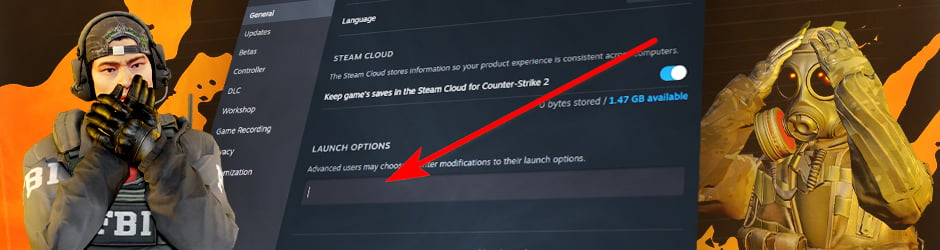
The last step is to set the launch options you need for playing CS2, press OK, and restart the game to take effect. Be sure that all launch options in the tab are separated, and don’t contain quotes or other odd characters.
Main Launch Options For Everybody
As it should be, we need to begin our guide with the most useful CS2 launch options. They can boost FPS, free up RAM, or save a few seconds per game launch. Here is a list of them:
- -novid: The option that skips the intro video when players launch the game.
- +fps_max 0: It removes the FPS cap.
- -nojoy: This launch option removes joystick support. As a result, it may free up RAM.
- -softparticlesdefaultoff: It disables the smooth blending of smoke effects with the game environment, which may help for low-end PCs.
- -console: The option that enables the developer console by default. Players can use it in combination with the command +exec autoexec. It allows the user to automatically apply personalized console commands.
- +violence_hblood 0: It removes blood from the game, but may not work on some PCs or CS2 versions.
Launch Options for More FPS
CS2 launch options for higher FPS are among the most ambiguous settings. The reason is that players can do more harm than good if they already have high FPS. That’s why it’s better not to use these options or at least test them one by one to check if they offer a disadvantage specifically for you. Here is a list of all launch options for FPS:
- +fps_max 0: It removes the game’s default limit on your framerate.
- -fullscreen: The option forces CS2 to launch in Exclusive Fullscreen display mode, which makes the operating system dedicate all rendering resources solely to the game.
- +mat_disable_fancy_blending 1: The launch option simplifies how the game renders surfaces, which can help on low-end PCs.
- -forcenovsync: This option can increase a player’s maximum FPS, but it may introduce screen tearing.
- +r_dynamic 0: It disables dynamic lighting effects in the game, such as the light from muzzle flashes and explosions.
- +mat_queue_mode 2: The option forces CS2 to use multi-core rendering. It significantly improves CPU utilization.
- -vulkan: The command forces the game to run with DirectX: Vulkan instead of 11.
Resolution Launch Options
Of course, the best way to set the resolution is CS2 in-game settings. Using this method avoids any potential issues. Still, it doesn’t mean players cannot set a unique resolution by using launch options. In short, use the following option:
- -w 0 -h 0
The first one is width, and the next is height. Change 0 to the value in pixels you exactly need. For example, if you need a resolution of 1200×800, use -w 1200 -h 800.
144hz and 240hz Launch Options
Having a high refresh rate is a crucial part of gaming. That’s why it’s better to check if you really have one. Technically, CS2 sets your refresh rate to the maximum supported by your monitor. Still, it’s better to be sure by using the following CS2 launch options:
- -refresh 144
- -refresh 240
The chosen value depends on your setup. Also, remember to check Windows graphics settings and cables. The last ones should be HDMI 1.4+, DisplayPort, or DVI Dual-Link. Lastly, use -forcenovsync to make sure vSync is disabled.
Advanced CS2 Launch Options Used by Pro Players
Common users usually underestimate some settings and leave them to chance. Still, each pro player knows how crucial every detail can be. And CS2 launch options are among the details that can significantly change a player’s experience during long sessions. Here, we prepared a list with different options, which could be helpful specifically for you:
| Pro Player | Launch Option | Function |
| m0NESY, rain | -threads 0 | It tells the CS2 engine to detect and use all available CPU threads automatically. |
| ZywOo, device | -softparticlesdefaultoff | It disables the subtle “soft particle” effect where smoke and explosions blend more smoothly with the environment. |
| s1mple, NiKo | -d3d9ex | It helps the game maintain a smoother transition and reduces the time it takes to minimize and maximize the game window. |
| sh1ro, blameF | +mat_queue_mode 2 | It forces the Source 2 engine to use full multi-threaded rendering. Using this launch option allows the game to use multiple CPU cores for processing game assets and rendering. As a result, it significantly improves CPU optimization. |
| EliGE, Twistzz | +r_dynamic 0 | It disables dynamic lighting and dynamic shadows. |
Launch Options That Are Useless in CS2
The last question we shouldn’t ignore is the useless launch options CS2. The main reason they are pointless is that these options have worked in CS:GO but not in CS2 or newer systems used by Valve.
For example, in the previous version, it was popular to use -tickrate 128. Nowadays, Counter-Strike uses a sub-tick system. The difference between these two systems is that the sub-tick system in CS2 processes player actions instantaneously. The traditional tick rate is a discrete, fixed interval at which the server updates the game state. In contrast, a sub-tick system accurately records the time of each action, thereby improving the accuracy of hit and movement registration. For the same reason as changing from CS:GO to CS2, options like -noforcemaccel, -noforcemparms, and -noforcemspd also don’t work.
After Valve changed the Source engine to Source 2, the -limitvsconst launch option became useless too. This command was originally used to stabilize rendering on older or less-optimized hardware. It forced the engine to use a limited number of vertex shader constants. As a result, the stability could be improved and stuttering slightly reduced. The new engine handles resource management much more efficiently and dynamically.
Also, CS2 uses DirectX 11. Because of that, the launch options -d3d9ex and -disable_d3d9ex were also deprecated, as they were usable with DirectX 9.
Additionally, some CS2 startup commands are better avoided than used. The best example is -allow_third_party_software. Some players use it when recording apps struggle without it. Still, it can lower the Trust Factor. The option -insecure follows almost the same reason since it disables VAC. It makes sense to use it when playing on third-party platforms with their own Anti-Cheat features. Lastly, -threads 0 (the number of CPU threads) and -heapsize are also useless, but using them can crash the game.
To Sum Up
As you can see, there are several launch options for CS2. Still, not all of them are useful because of the new engine. Moreover, some of the options may harm your experience. That’s why it’s essential to explore each of them separately and test them individually. On the other hand, the time invested will undoubtedly yield a smoother gameplay experience. Begin to explore these CS2 launch options in practice right now and win the next match as a pro player!
Also, remember to explore other guides on Hellcase Blog. Here, you can find anything from lists with top skins to applicable settings and playstyles. Enjoy Counter-Strike 2 together with us!
FAQ
You need to use launch options -high and +fps_max 0 (0 for high-end PC and 200-400 for mid-end PC). Additionally, players can increase their FPS in several ways. For example, you can close background programs. Also, update drivers and lower video settings. Remember that you need a higher refresh rate, not the best quality picture.
Open Steam and find Library. Then right-click Counter-Strike 2 in your list of games and choose Properties. At the bottom of the window, you will see a tab labeled Launch Options.
Players can use -w 0 and -h 0 launch options with 0 equal to the resolution they need (for example, -w 1920 -h 1080). Another way to change them is through Counter-Strike 2 video settings.
Players need to use the options that reduce input lag and boost FPS. For example, the best launch options for low-end PCs are -high and +fps_max 0 (the value should be slightly higher than your actual FPS). Also, players can use +r_dynamic 0, +cl_forcepreload 1, -nojoy, and -limitvsconst.
Valve allows launch options. Usually the use of them doesn’t trigger anti-cheat.

Average CS enjoyer. Knows everything about CS skins, including which ones will suit your weapons best.