
How to Watch Demos in CS2: Record, Watch, and Analyze Your Gameplay
 radoslaw-davidovic
Watching and reviewing CS2 demos is one of the most effective ways to improve your gameplay, analyze strategies, and relive your favorite matches. Whether you want to watch CS2 matches, study professional plays, or review your own mistakes, mastering the CS2 demo viewer is essential.
In this guide, we’ll walk you through how to watch demos in CS2, where to find your CS2 demo folder, and how to record and review gameplay step-by-step. By learning proper demo recording and analysis, you’ll gain valuable insights into positioning, tactics, and decision-making, giving you the edge you need to level up and dominate your next match.

In article you will find:
Types of CS2 Demo Recordings
In Counter-Strike 2, demos are recorded files that capture the events of a match, allowing you to rewatch and analyze every moment later. There are several types of CS2 demo recordings, each serving a different purpose:
Matchmaking Demos (Automatic Recordings)
These demos are automatically saved after official competitive matches, such as ranked games or Premier mode. They’re perfect for reviewing your performance without needing to manually start recording. You can find them directly in the CS2 demo folder or through the game’s demo viewer.
Manual Demo Recordings
Players can manually start recording a demo at any time using in-game console commands like record [filename]. This option is ideal for capturing scrims, practice sessions, or custom games that aren’t automatically recorded by CS2.
POV (Point of View) Demos
POV demos focus entirely on your own gameplay perspective. They’re especially useful for identifying personal mistakes, reaction times, and decision-making during key moments.
GOTV or Spectator Demos
These recordings capture the match from a spectator’s perspective, showing every player and angle. GOTV demos are commonly used by analysts, coaches, and esports organizations to review team strategies or study professional matches.
Understanding the different types of demos helps you choose the right one for your goals whether you’re looking to improve your individual skills, analyze team play, or simply relive a great game.
How to Record CS2 Demos
As you can notice, before you start watching CS2 demos, you need to know how to record them first. It’s easier than you think. First of all, you need to open the developer console by using the “`” or “~” button on your keyboard. You must turn it on in settings to have access to that console.
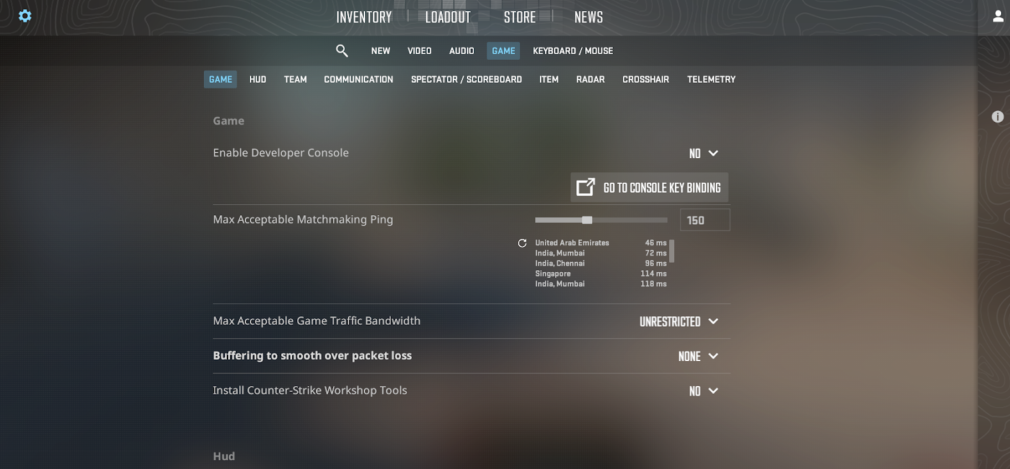
Next, type “record” when you are ready to start the match and press “Enter.” If you need to stop it, just type “stop” + “Enter” in the console. Remember to type the demo’s name before it starts for better memory and navigation. You need to write it after the “record.”
This is the example for better understanding:
- record demo_test + Enter
- stop + Enter
How to Watch Demos in CS2
The next question is how to watch CS2 demos. You might think it’s a complicated process requiring your attention and patience. In truth, everything is easier than most players think. Here are only two steps to watch CS2 demos and analyze them.
Step 1 — CS2 Demos Location
The first step is understanding the CS2 demos location. By default, the game saves the demos in the folder with the game’s installation.
If you download the CS2 demos from an outward source, save them in the next folder: “Steam\steamapps\common\Counter-Strike Global Offensive\csgo.” It would help if you did it that way for easier future access to a particular demo.
Step 2 — Opening Demos with Developer Console
You need to know how to play demo CS2 as soon as you download the files. Type “playdemo demo_name” in the developer console. The part “demo_name” is the name of the certain file you need at the moment. The example:
- playdemo demo_test + Enter
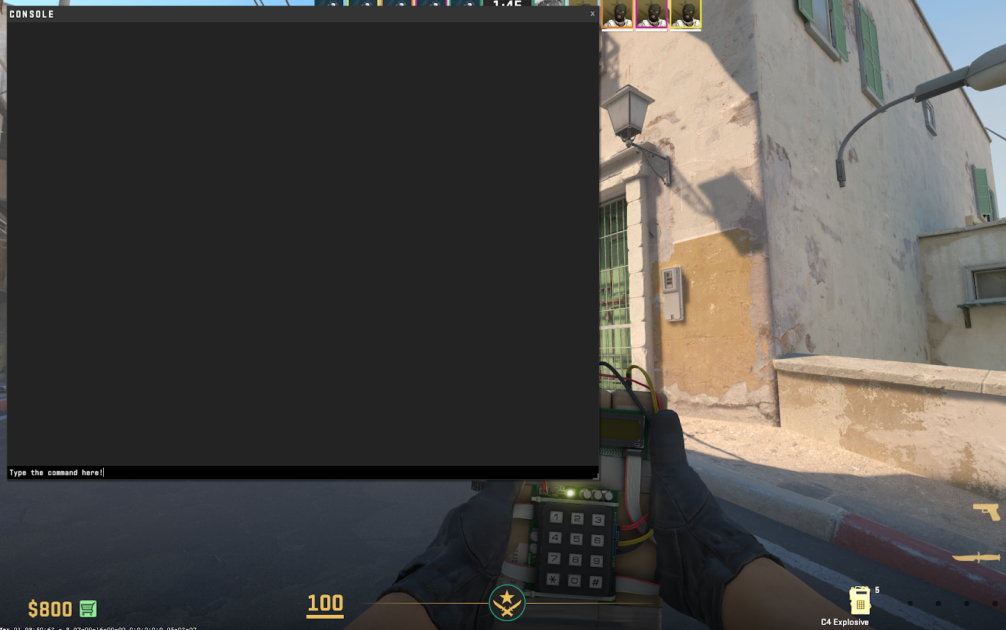
Type “demoui” in the console to use the extended demo viewer. The example:
- demoui + Enter
All Demo Controls in Counter-Strike 2
As you can already notice, the demo controls in Counter-Strike 2 give you a better experience. For example, you can review or analyze your gameplay. Let’s check each of these controls.
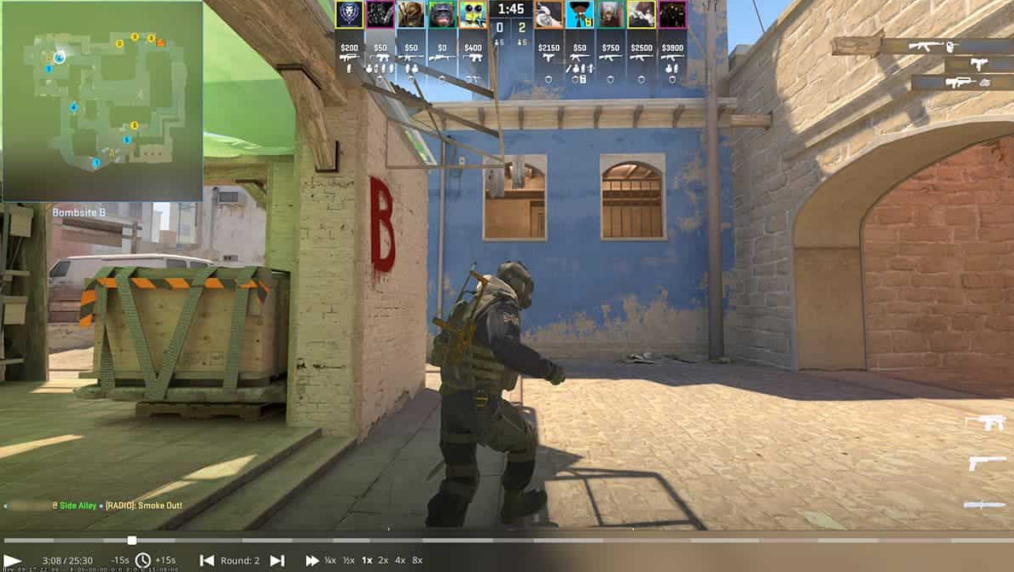
Recording CS2 Demos
Type “record demo_name” in the developer console in-game to start recording. Type “stop” in the console to stop the recording. Example:
- record demo_test + Enter
- stop + Enter
Playing Back Demos
To watch CS2 demos, open the developer console and type “play demo demo_name.” The example:
- play demo demo_test + Enter
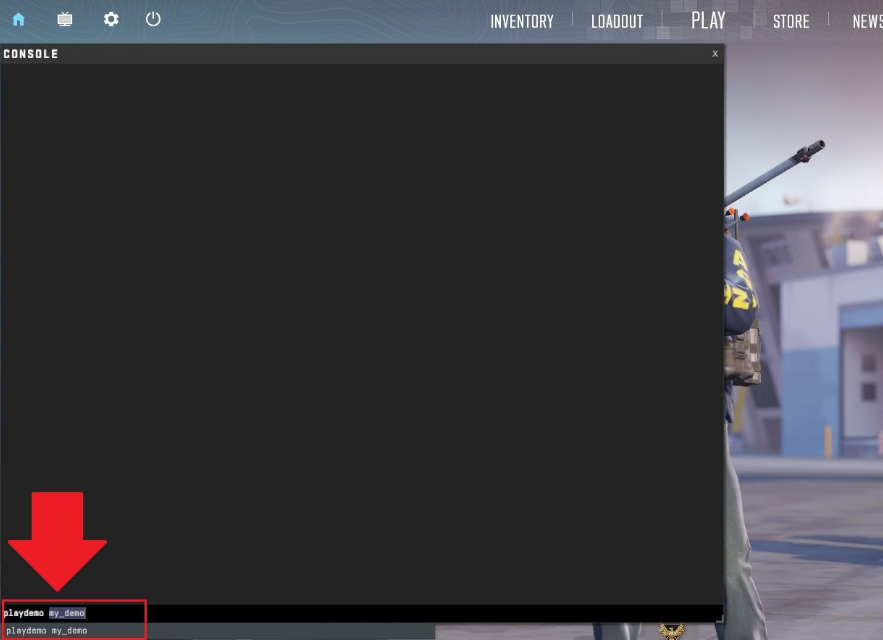
Navigate CS2 Demos
Type “demoui” in the developer console or press Shift + F2 to open the demo controls. The example:
- demoui + Enter
Basic Playback Controls
Here is the list of the basic playback controls you need:
- Play/Pause: Start or pause the CS2 demo playback.
- Speed Control: You can control the speed of the CS2 demo to watch the game in slow motion or high speed or to find a certain time you need.
- Skipping Rounds: A control feature to skip forward or backward by rounds.
- Spectator Controls: These functions allow the spectator to choose their point of view during the match (e.g., a certain player or free camera mode).
- Visibility Controls: Control what you want to see on the screen by using the commands.
Advanced Replay Controls in CS2
You might also need a list with the advanced replay controls to watch CS2 demos:
- Timestamp Tracking: That feature shows you total and elapsed time.
- Instant Replay: You can instantly jump forward or back 15 seconds while watching the CS2 demos.
- Round Navigation: Navigate between rounds to choose the one you need.
- Player Cycling: Navigate between players’ perspectives using a mouse or keyboard (number keys).
- Camera Modes: Use the Space bar to change view between first-person, third-person, or free-camera.
- Tactical Overview: Watch all players’ positions on the map by pressing the “Q” on the keyboard.
- Scoreboard Access: The Tab key shows you the match scoreboard.
Going Through Different Angles and Perspectives in CS2 Demos
Now, you already know how to play demo CS2. Still, you can have questions about going through different angles and perspectives in CS2 demos. You can do it with the “C” key on the keyboard. If you want to choose a certain player, press the number key on the keyboard (e.g., 1, 2, 3, 4, etc).
One more important feature for identifying the best strategic moments is the “speed” command (or press Shift + F2). With it, you can control the playback speed and watch each player’s movement. The example:
- speed 1 + Enter
- speed 0.5 + Enter
How to Watch Professional Match Demos
You can also watch professional CS2 match demos to learn esports teams’ fighting or economic strategies. You can explore our CS2 economy guide here.
However, visit ESL.com or HLTV.org to watch the professional CS2 match demos. Here is the list with instructions on how you can do it:
- First, you need to choose the match demo you need.
- Then download it to your PC.
- Now, you need to extract the downloaded files and choose the folder for the installation.
Analyzing Demos with Third-Party Tools
Moreover, you can watch demo files in CS2 by using Third-Party Tools like Leetify or CSGO Demos Manager. These platforms usually offer more functionality than the standard CS2 feature.
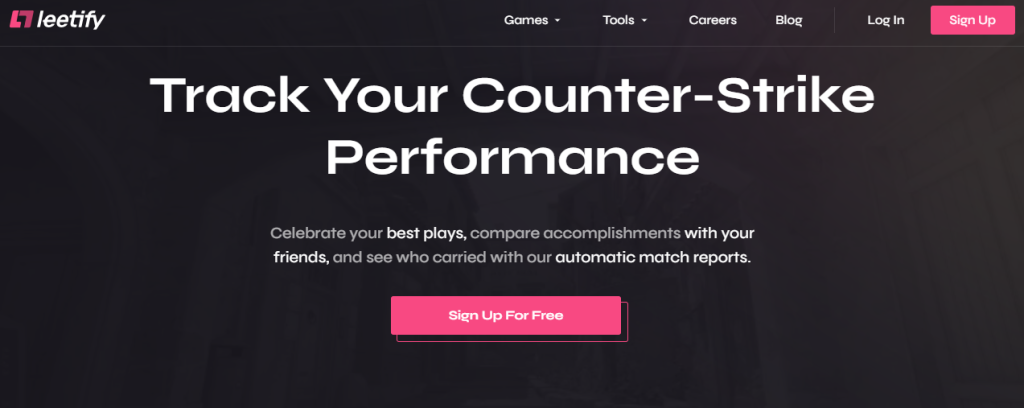
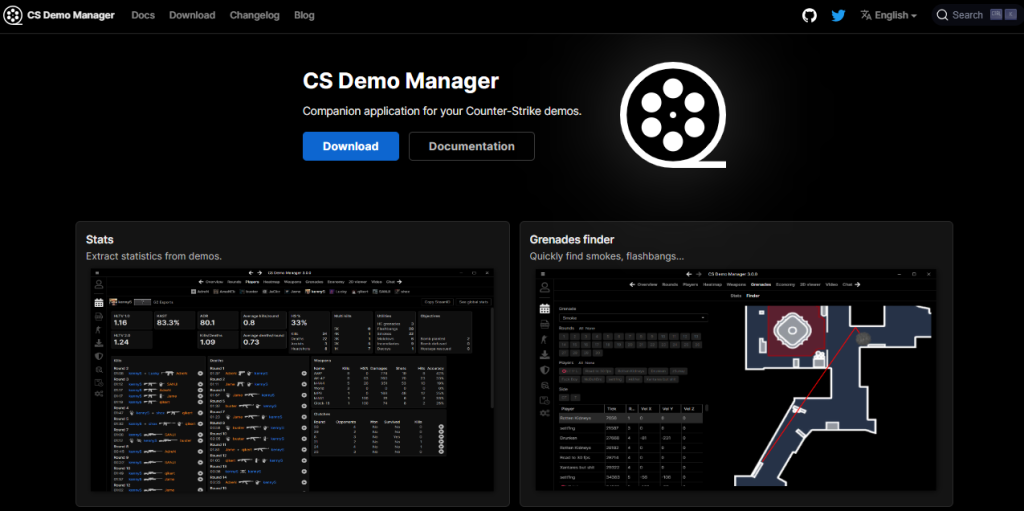
By using these platforms, you can save time without trying to find the CS2 demos’ location. Just download the CS2 demo files and start watching them. Also, you don’t need to log in to your Steam account, which could be a nice advantage for some players.
Why You Should Watch CS2 Demos?
One of the main questions is why you should watch CS2 demos. What can you learn and use from them?
First, you can watch your or your teammates’ mistakes during the last match. If we are talking about the demos of professional games, you can learn the new strategies used by esports players.
Moreover, the CS2 demos show the differences in damage at certain moments. For a better understanding, we recommend exploring our damage guide to see the details.
What if there is no console in the game?
As we already mentioned, you need to press the “`” or “~” button on your keyboard to open the developer console in CS2. However, this could cause problems.
If you cannot open the console, you should open the settings and find the game settings. Then find the “Enable Developer Console” and turn it to “Yes”.
To Sum Up
As you can see, watching CS2 demos can improve your strategy by learning mistakes and each player’s movements. That’s an excellent way to level up your gameplay. We explored how you can record CS2 demos and download and watch them. Remember to practice your skills to see the improvements in your game in no time.
You can also visit Hellcase Blog to explore more materials about CS2 strategies, in-game guides, cosmetic items, and the latest esports news. Stay with us and enjoy the game!
FAQ
To download the CS2 demos, you must find CS2 on Steam. Then get into “Personal Game Data”> “Premier Matches”> “Download GOTV Replay.”
Press Shift + F2 or type “playdemo demo_name” in the developer console to watch the CS2 demos. The example:
playdemo demo_test
Open Steam in the browser and log in. Select the personal game data tab > the respective matches tab > click “download replay.” Now, you need to extract the file and watch it.
Open the developer console by pressing the “`” or “~” button on your keyboard. Type “record” + demo_name to name it for better memory and navigation. Type “stop” as soon as you want to stop recording. The example:
record demo_test + Enter
stop + Enter
Sure. You need to visit the platforms with professional match demos (like HLTV.org or ESL.com) and find the available demos.

Radosław Davidović is Hellcase’s customer success manager. He enjoys blogging to share his knowledge and experience with customers.