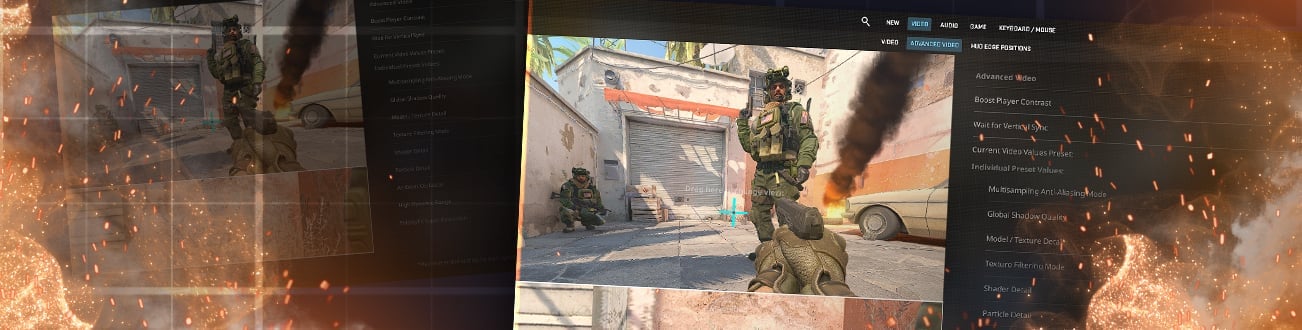

How to Change FOV in CS2: An Ultimate Guide
 el-pollo-diablo
In Counter-Strike 2 (CS2), milliseconds can decide the outcome of a match. Whether you’re defending a site or rushing mid, everything—from your reaction time to your accuracy—matters. The moment you see an opponent, aim, and pull the trigger, the clock is already ticking. So the big question is: Is there a way to gain a visual edge and spot your enemy just a bit faster?
One of the most overlooked yet powerful tools in your settings is your FOV, or Field of View. By tweaking your CS2 FOV settings, you can actually widen your perspective, giving you a clearer and broader view of the battlefield. This can lead to faster target acquisition and more informed decision-making in high-pressure situations.

In this guide, we’ll break down everything you need to know about CS2 FOV—what it is, how it influences your gameplay, and how it interacts with the CS2 FOV viewmodel that determines the position of your weapon on screen. We’ll also walk you through how to change FOV in CS2 using console settings, and provide the most effective CS2 FOV commands to help you optimize your visual setup for competitive play.
Whether you’re new to CS2 or a seasoned player looking for an edge, understanding and adjusting your FOV can offer a subtle yet impactful improvement to your game. Let’s dive in.
In article you will find:
What is FOV in CS2?
In CS2, FOV (Field of View) refers to how much of the game world is visible on your screen at once. A higher CS2 FOV allows you to see more of your surroundings, which can be crucial for spotting enemies earlier and improving your situational awareness. This setting directly influences your spatial perception during gameplay and can significantly affect your reaction time.
Alongside the general FOV, CS2 FOV viewmodel settings determine how your weapon is positioned on the screen. Adjusting this can free up visual space and make your interface feel less cluttered.
Players often tweak these values to gain a competitive edge or enhance comfort. You can change your FOV using in-game video settings or by entering a specific CS2 FOV command in the developer console. Understanding how to change FOV in CS2 is essential for optimizing your visual setup and customizing your gameplay experience.
How to Increase FOV in CS2?
Increasing your FOV in CS2 can significantly improve your field awareness and reaction time by allowing you to see more of the game environment. There are two main ways to adjust your FOV: through the in-game settings menu or by using a CS2 FOV command in the developer console. Both methods give you control over your view, but using console commands offers more customization.
In this section, we’ll explain step-by-step how to change FOV in CS2 using both approaches. You’ll also learn about the available FOV ranges, how they affect your gameplay experience, and how to adjust your CS2 FOV viewmodel for optimal weapon positioning on the screen.
Whether you’re looking for a wider perspective or a cleaner HUD layout, understanding these settings will help you tailor your view for competitive performance.
How to Change CS2 FOV in the Settings?
There are three options for FOV in the settings menu. The first is Desktop, designed for players using a standard monitor. This value is the default, and most newcomers use it. This preset is suitable for those with an average or close distance between the eye and the position of the monitor.

The second preset is Couch, suitable for players who play at a great distance from the monitor. With this preset, the position of your model’s hands will block your view as much as possible, but if you are sitting far from the monitor, you can feel more immersed in the game.
The third option is Classic. This is the hand position that was used in previous versions of the game and is suitable for those players who have spent many hours playing, for example, CS 1.6 or CS:GO. If you are a veteran of this series of games, you can safely use this preset.
How to Change FOV with the Command Console?
Using the console, the FOV in CS2 can be customized in much more detail than using presets in the settings. In order to change the FOV, you need to open the console and enter the command viewmodel_fov, with a value set from 54 to 68.
If you look at this setting, the most practical and useful value will be the maximum (viewmodel_fov 68). With it, the surveyed area will be much larger, which means the chance that you will react faster is higher.
Advanced Viewmodel Customization
Beyond basic FOV changes, CS2 allows detailed weapon positioning using the viewmodel offset commands. These affect where your weapon sits on-screen:
- viewmodel_offset_x – horizontal position (left/right)
- viewmodel_offset_y – vertical distance from the player
- viewmodel_offset_z – depth (closer or farther from the screen)
Recommended values for a clean, unobstructed view:
- viewmodel_offset_x 2
- viewmodel_offset_y 2
- viewmodel_offset_z -2
This setup minimizes visual clutter, helping you stay focused on enemy positions rather than being distracted by large weapon animations. Experiment with these commands in a private server or training map to find your ideal layout.
Using Workshop Maps for FOV Adjustment
For a more visual approach to FOV and viewmodel tuning, try using Steam Workshop maps like “crashz’ Viewmodel Generator.” These maps allow you to preview all possible weapon and FOV configurations in real-time without typing commands manually.
You can:
- See how different FOV values affect visibility
- Adjust weapon positions live
- Save your final config for competitive use
This is especially useful for new players or those unfamiliar with console commands. Simply search for the map in the CS2 Workshop and launch it through the “Play” menu.
Tips for Optimal FOV Setting in CS2
Field of View, like any other setting in the game, has its own nuances and variables that should be taken into account. In this section, we will look at what needs to be taken into account to optimally configure the FOV in CS 2 and what settings are closely related to it.
Finding the Right Balance
You must find the perfect balance between the value of the FOV and the convenience of how it will be visually displayed in the picture. The position of your model’s hands should not cover a lot of space, but even if you completely hide your hand,s you may feel uncomfortable when playing.
Considering Screen Resolution
The main myth about FOV in CS 2 is the statement that the higher the value, the wider your viewing angle. In fact, this is not the case, since the resolution of your monitor is responsible for increasing the viewing angle. The higher the resolution value, the wider your viewing angle, which, in combination with a well-tuned FOV, can give you a tangible advantage over your opponent.
Player Preferences and Playstyle
When choosing the FOV value, you should also be guided by your individual preferences and playstyle. For example, playing the role of an anchor of one of the sites, you often need to control a huge area and the larger the area that you can inspect, the less chance the enemy will slip through unnoticed.
Experimentation and Fine-Tuning
You should not set the maximum value in the FoV setting just because this is considered the best setting. Try different values for this setting; maybe something else will suit you. The more accurately you customize the game for yourself, the better your performance will be.
Community Recommendations and Pro Player Insights
There is a lot of debate among the community about the optimal value of FOV, but as for the players, absolutely all players from the top 10 HLTV will use the highest available value for this setting. So we strongly recommend setting the maximum FoV value, especially for those who want to make a name for themselves in CS 2.
Pro Player FOV Preferences and Recommended Settings
While CS2 FOV ultimately comes down to personal preference, many professional players tend to favor settings that strike a balance between awareness and clarity. Most pros use a viewmodel FOV in the range of 54 to 68, which provides a wide enough field of view to monitor surroundings without excessive distortion or reduced visibility of distant enemies.
The default FOV in CS2 is typically set at 60, but increasing it slightly can enhance your peripheral vision. Pro players often fine-tune both their overall FOV and CS2 FOV view model to keep their weapon model less obtrusive, usually by shifting the weapon toward the side or lowering its height, giving more visibility in the center of the screen.
Here are some commonly recommended CS2 FOV commands used by high-level players:
viewmodel_fov 68
viewmodel_offset_x 2
viewmodel_offset_y 2
viewmodel_offset_z -2
These commands adjust the weapon’s position for a cleaner, more open screen layout. If you’re experimenting with how to change FOV in CS2, start with moderate adjustments and test them in practice matches or aim trainers to find what feels natural and effective.
Ultimately, the goal is to create a setup that enhances your awareness without compromising precision, just like the pros do.
Common FOV Misconceptions
There’s a popular belief that simply setting the highest possible CS2 FOV will instantly improve your gameplay. While a wider field of view increases peripheral vision, it also makes distant targets appear smaller and may lead to visual distortion on the edges of your screen.
Another misconception is that FOV directly determines your viewing angle. In reality, your screen resolution plays a key role. A higher resolution, when combined with an optimized FOV, produces the widest and cleanest view.
Don’t assume that pro settings will automatically work for you. Your comfort, screen size, distance from the monitor, and play style should all guide your final configuration.
Wrapping Up!
Field of view settings are a fairly popular topic for discussion as it is one of the auxiliary settings that have a direct impact on the player’s performance. The vast majority consider the best solution to be to set the maximum value for this setting.
But in reality, not everything is so simple, and different game settings will suit each player. That’s why don’t be afraid to experiment and try something new. Improve your gaming experience and results. Read our blog to be the first to know about new features and trends in CS 2.
FAQ
FoV directly affects gameplay since this setting is responsible for the area of the inspected area. The higher this value, the easier it will be for you to notice your opponent.
The default FoV value in the game settings is Desktop. Which is equal to viewmodel_fov 60.
The command to change the FOV is viewmodel_fov. The minimum available value is 54, and the maximum is 68.

El Pollo Diablo is the author of articles and game guides. He knows the answers to all your questions about game mechanics, updates, and tournaments.