
CS2 (CS:GO) Workshop: How to Add Workshop Maps to CS2 (CS:GO)
 el-pollo-diablo
Today, Counter-Strike remains one of the leading 5v5 competitive esports disciplines. Despite its seemingly simple mechanics, it continues to attract millions of gamers worldwide. So, what’s behind its enduring popularity? Much of it comes down to Valve’s ongoing support. Even amid waves of community criticism, Valve remains committed to improving the game, pushing regular updates, balancing gameplay, and introducing new content to keep the experience fresh.
But how does Valve stay in touch with what players really want? One of their most effective tools is the CS2 (CS:GO) Workshop. This platform allows players to share, explore, and play custom content—from intense 1v1 Workshop CS2 arenas to detailed training maps and fun experimental modes. It’s a way for the community to directly shape the game’s evolution, offering feedback and ideas through the very maps they create.

In this guide, we’ll show you how to navigate the CS2 Workshop, how to find and install CS2 (CS:GO) Workshop maps, and how to launch them in-game. Whether you’re training for your next clutch, exploring creative map designs, or just diving into something new, the Counter-Strike Global Offensive Workshop is a playground worth mastering.
In article you will find:
What is CS2 (CS:GO) Workshop?
The CS2 (CS:GO) Workshop is a community-powered platform integrated into Steam, where players can create, share, and explore custom content such as maps, weapon skins, training tools, and more. This feature-rich space not only empowers creativity within the community but also gives players access to thousands of unique creations, completely free. Whether you’re searching for 1v1 Workshop CS2 maps or training maps to improve your gameplay, the Workshop has something for everyone.
One of the most appealing aspects of the CS2 (CS:GO) Workshop is Valve’s active involvement. The development team regularly monitors trending and top-rated content, often adding the best creations to the official game. A great example is the Anubis map, originally crafted by Workshop users “Roald”, “jakuza”, and “jd40” back in 2019. It gained popularity in the Counter-Strike Global Offensive Workshop, and eventually became part of the official map pool in CS2.
In addition, Valve supports creators by purchasing the rights to popular content or offering a share of the revenue when it becomes monetized, providing both recognition and rewards to the community’s most talented contributors.
CS2 (CS:GO) Workshop Maps: Explore Custom Content
Among all types of content available, CS2 (CS:GO) Workshop maps are the most widely used and appreciated by players. These maps are designed for a wide range of purposes—whether you’re looking to improve your shooting accuracy, practice grenade lineups, fine-tune your crosshair settings, or enhance your movement.
The Maps Workshop tab offers:
- Aim training maps for reflex improvement
- Grenade practice maps to learn smokes, flashes, and molotovs
- Movement and bhop maps for better agility
- Crosshair and config maps to adjust personal settings
- 1v1 Workshop CS2 maps for competitive practice
- Fun modes like hide-and-seek, horror maps, and survival maps for casual play
Taking a break from competitive matchmaking? You can gather your friends and enjoy some light-hearted fun with custom hide-and-seek or co-op maps. If you’re after a thrill, try exploring horror-themed or zombie survival CS2 (CS:GO) Workshop maps—the creativity is limitless.
While the CS2 (CS:GO) Workshop is packed with great content, its interface can be overwhelming for newcomers. Navigating through categories and installing maps or items isn’t always intuitive, but once you learn the basics, a whole new world of Counter-Strike possibilities opens up.
How to Add Workshop Maps to CS2 (CS:GO)
Downloading the CS2 (CS:GO) workshop maps is quite simple. You just need to know where to go and what to click on.
First, you need to open Steam. Find the Community tab, hover over it with the mouse, and you will see several sub-tabs. Therefore, click on the one you are interested in Workshop.
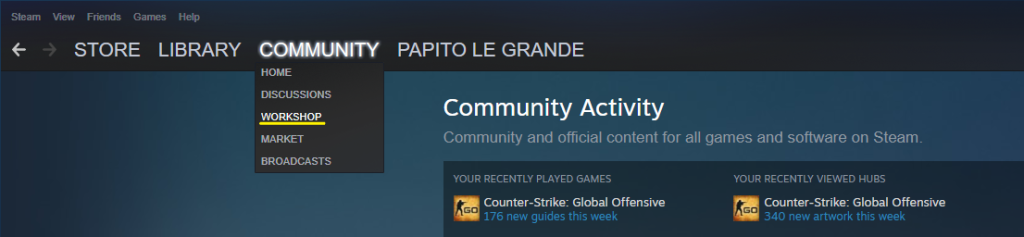
On the page that opens, find the search bar and enter the name of the game there, in our case, it is Counter-Strike: Global Offensive. After that, you are transferred directly to the CS2 (CS:GO) workshop.
Under the picture with the inscription Counter-Strike, you can see the “Browse” button. Hover over it and select “Maps”. You will see a list of the most popular CS2 (CS:GO) Workshop maps from the workshop. You can add it just by clicking on the green cross. There is a search bar if you need to find a specific map.

You can also add maps while playing CS. To do this, simply open the In-Game Overlay (Shift+Tab by default) and follow the same guide above to access the CS2 (CS:GO) Workshop directly.
The number of custom maps is quite impressive, and it can take a few hours to find something interesting. To make it easier for you, we have selected several CS2 (CS:GO) Workshop maps that are worth your attention.
The Best CS2 (CS:GO) Workshop Maps
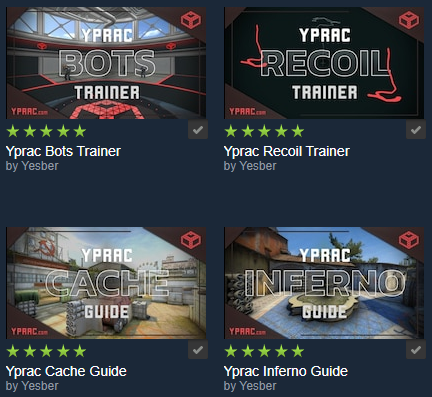
As we noted earlier, the choice of a map depends on your goals. If you want to improve your CS skills, the Yprac series of practice maps by Yesber is a great choice. These are some of the most useful CS2 (CS:GO) Workshop maps for aim training, utility throwing, prefire exercises, and peek practice across all competitive maps. They’re a must-have for any serious player using the CS2 Workshop for training purposes.
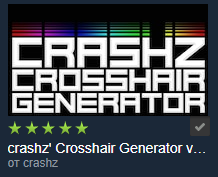
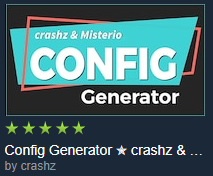
If you feel uncomfortable during play or your results have deteriorated a lot lately, try adjusting your config or crosshair. With the help of custom maps in the CS2 (CS:GO) Workshop created by user “crashz,” this process becomes much easier than editing game files manually. These tools are among the most popular picks in the Counter-Strike Global Offensive Workshop.
As for other maps, such as Hide and Seek or horror modes, it’s hard to choose the best one. Each of them is good in its own way. The main thing is that you and your friends have fun. The CS2 (CS:GO) Workshop is full of entertaining and creative maps that go beyond traditional gameplay.
In addition to maps, there are many more interesting things in the CS2 (CS:GO) Workshop, such as music packs, stickers, and skins. Unfortunately, you can’t use them in the game itself, but you can promote them by leaving positive comments.
Items Workshop
Custom skin models in the CS2 Workshop are usually created using programs like Photoshop or other editors that support the Valve Texture Format (VTF). Unfortunately, skins from the workshop cannot be used in any online game mode. You can only use it on a local server or in a game with bots. The VAC anti-cheat system will prevent you from running a search for a ranked match or any other format.
If any skin from the workshop gets a lot of positive feedback, then there is a good chance that developers will add it to the next collection of weapons.
You can also create content in CS2 (CS:GO) and add it to the Steam Workshop for public display. If your product gains hype and is added to the game, you will earn good money.
How to Upload Your Creations to CS2 (CS:GO) Workshop?
So, you have finally managed to create stylish skin for a pistol or a knife. Now let’s see what the process of uploading a CS2 (CS:GO) skin to the Workshop looks like.
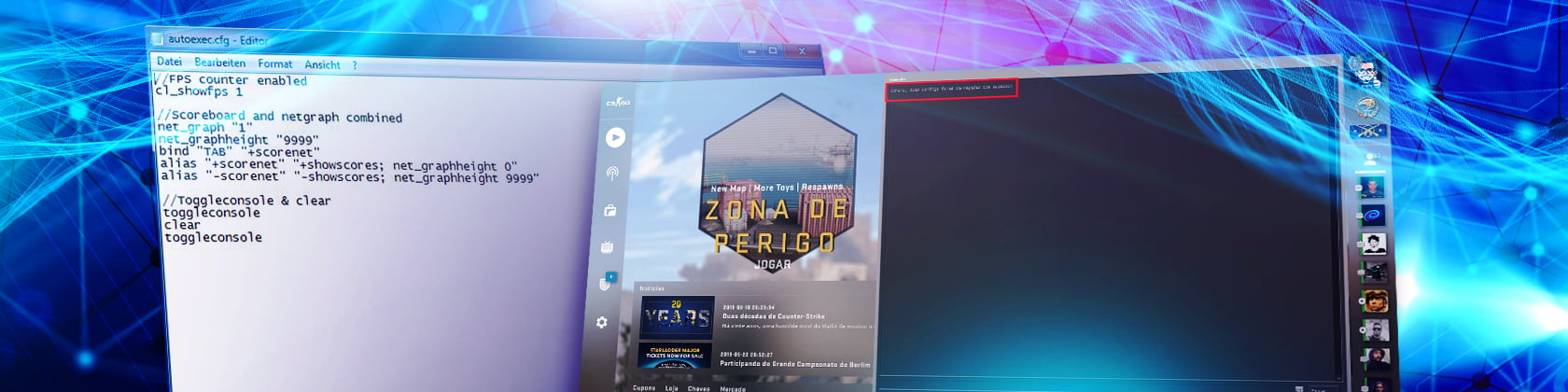
First, launch CS. In “Settings”, enable the developer console. If you don’t know how to do this, we recommend you check out our article about configuration and console.
Then, open the console and write “workshop_workbench”. In an opened window, you will see the inscription “Workbench” click on it. Select the “Custom Paint Job” option at the top left of the screen and then upload your skin. Go ahead and choose a weapon model at this point.
Next, you need to adjust the position of your weapon with the sliders and see how your custom skin looks on it.
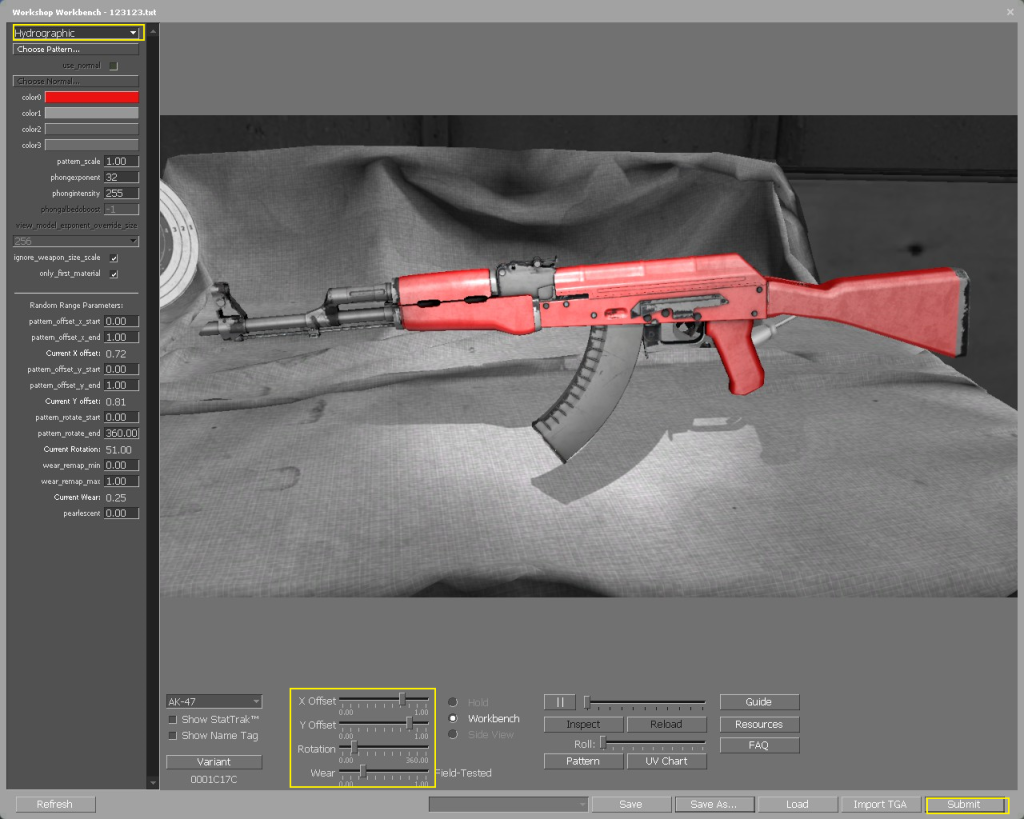
After checking the skin out on your weapon, click on the “Submit” button. Set the title image of your work to be displayed in the Workshop, agree with the terms, and click “Publish”.
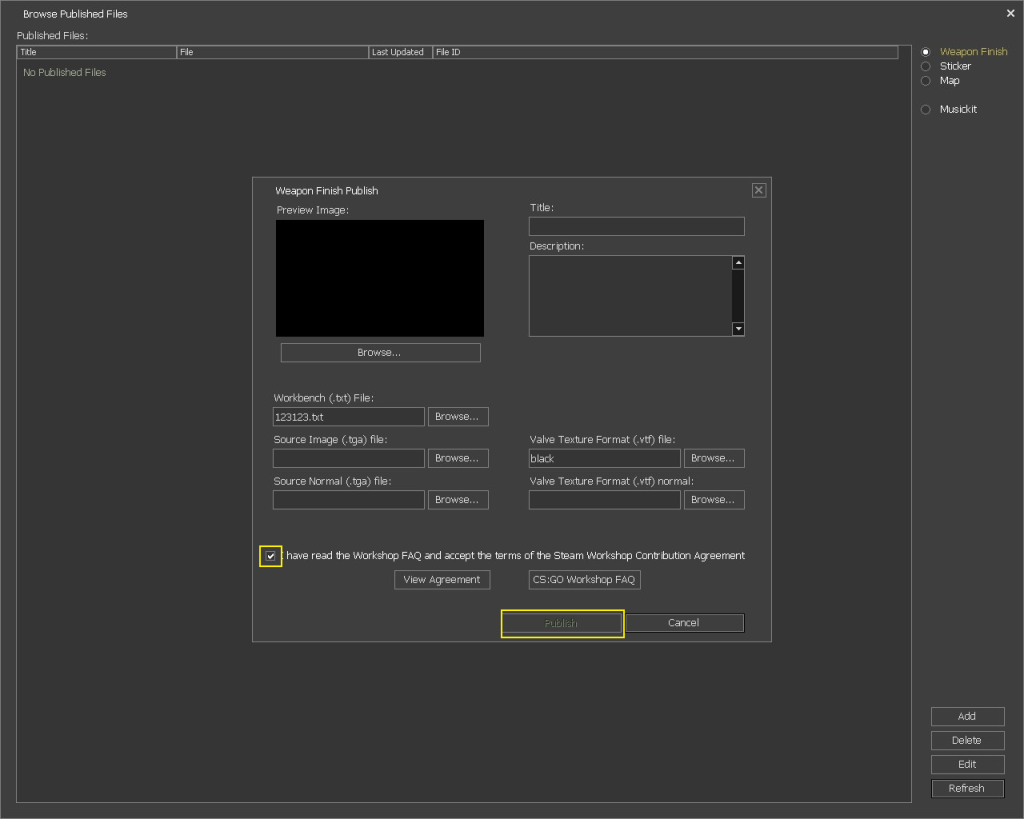
That’s all! Now you can search your custom skin in Workshop and monitor community opinion about it.
To Wrap Up!
The CS2 (CS:GO) Workshop is more than just a collection of user-made content—it’s a thriving hub for creativity, skill development, and community engagement. Whether you’re grinding through CS2 (CS:GO) Workshop maps to improve your aim, exploring fun hide-and-seek or horror modes, or adjusting your setup with crosshair and config tools, the Workshop has something for every type of player.
Thanks to Valve’s ongoing support and the passion of creators, the CS2 Workshop continues to shape the future of Counter-Strike Global Offensive. Even though not all content can be used in online matches, the exposure and potential for official inclusion make it a rewarding space for both players and designers. So dive in, experiment with maps, and maybe even create something yourself—the next iconic map or skin might just come from your imagination.
If you want to up your game at CS, then our blog is a treasure trove for you with a variety of guides, news, and recommendations.
FAQ
The Steam Workshop is a kind of repository for mods and in-game items from Valve’s video games created by players.
Yes, it’s safe. There is not a thing you need to worry about though. In the entire history of the existence of the Workshop, there has not been a single case of viruses or other malware infections.
Yes, it won’t cause any problems. However, deleting an entire folder is simply pointless since Steam will try to re-download files previously synchronized with your subscriptions.

El Pollo Diablo is the author of articles and game guides. He knows the answers to all your questions about game mechanics, updates, and tournaments.