CS2 Net Graph: How to Show FPS, Ping, and Packet Loss
 radoslaw-davidovic
While playing CS2, you might experience some weird moments when the game just doesn’t look properly. The image was more like a slideshow with different stuttering. As a result, you just don’t have enough time to react. Here is the moment you need to use a tool to understand the cause of these errors. Of course, we are talking about net graph CS2. While it doesn’t help you aim opponents, this tool shows you the current FPS, ping, and even packet loss. Ready to upgrade your gaming experience? Then follow our guide to explore all the details within minutes.
In article you will find:
What Happened to Net Graph in CS2?
The first thing we should note is that CS2 doesn’t support the net graph command as it was in CS:GO. In fact, with the transition to the new engine, Valve changed a number of things, along with removing a number of console commands players used to. As you can already notice, these changes affected the net_graph command in CS2.

Still, it doesn’t mean the developer has removed any option to check the current FPS or ping. Quite the opposite, they just made it more accessible for players, especially newcomers. Of course, there are console commands you can use instead of the net graph command CS2. But let’s first find out the in-built game settings — Telemetry.
What Is CS2 Telemetry (New Net Graph System)

If you were looking for the CS2 net graph, then Telemetry is your chance to monitor everything you need. In short, it’s a new net graph system in CS2 that literally replaced the old tool. And the nice thing about it is that Telemetry provides a real-time representation of your game’s health. In other words, you can easily track your FPS, server synchronization, and network stability.
For example, during a match, you can first notice the sudden FPS drop in the system. And only after a second will you see the annoying changes on your screen. That’s how fast a new tool is. But how can you enable it? Follow our guide, and we will show you all the steps soon.
Why Net Graph / Telemetry Is Important in CS2
Of course, there should be a reason to use CS2 net graph, or rather, Telemetry. Well, we are here to play in a competitive tactical shooter. Without a doubt, every second and millisecond is crucial, since even a single lag can result in a loss. By monitoring Telemetry, you can instantly identify sub-tick issues. Or, as another example, it could be helpful to find out which settings drop your FPS and which you can leave as they are. Last but not least, this tool can simply help you to understand your network stability before you begin a competitive match.
If you already think that it sounds quite convincing, then it’s the right time to find out how to enable the net graph in CS2.
How to Enable Net Graph in CS2
First, open your game settings and go to Game, then Telemetry. Here, you need to set “Always Show” the following options: FPS, Latency, and Packet Loss (Show Network Problems). That’s it. Now, you can easily monitor your performance without any third-party apps.
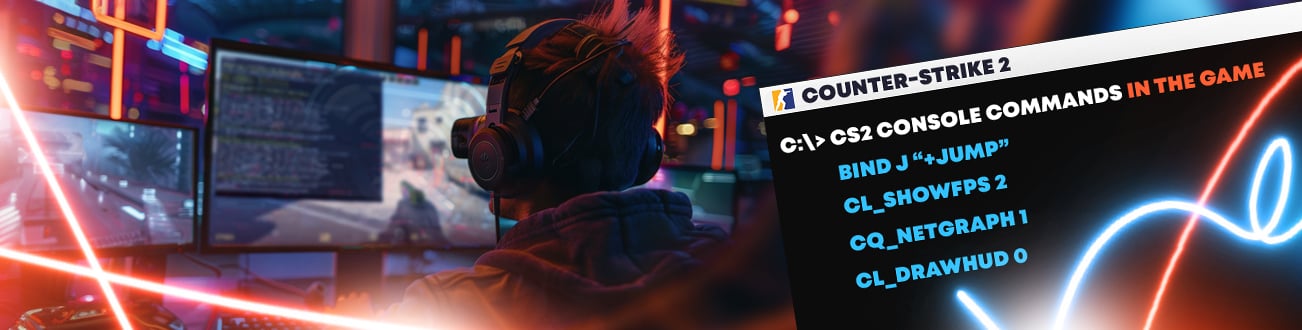
The alternative way is through a console. Remember to enable it first through the same settings tab as with Telemetry. Here, you can simply enable Developer Console to “Yes.” Pressing the ~ key opens or closes it whenever you need it. In the end, to enable the net graph in CS2, use the cq_netgraph_problem_show_auto 1 and cl_showfps 1 commands. The first command shows you ping, packet loss, and choke, while the second one displays FPS.
What Net Graph Shows in CS2
The net graph in CS2 shows several important pieces of information. Let’s check a list of them below:
- FPS (Frames per second): Simply shows you how smoothly the game is running.
- Ping: This information shows your latency to the server. In other words, it depends on how good your connection is.
- Packet Loss: Here, you will see the percentage of data packets lost. As a result, it leads to rubber-banding or lagging.
- Jitter: It is the variation in your ping that causes some sort of instability, while the ping could still be low.
- Missed Ticks: This part indicates issues with receiving updates from the server.
- Network Packet Information: Last but not least, this information visualizes network congestion spikes.
Best Telemetry Settings for CS2
The possible best settings do not always show you the information. While some details are better to check whenever you want, others may be less important at the moment. For example, we recommend choosing “Always” to display FPS and ping. For Packet Loss and Graph Visibility, the “If Poor” option may be more suitable. As a result, your HUD will be clean unless there is an actual problem.
How to Read Net Graph in CS2
No less important is understanding exactly what we need to check in the CS2 net graph. In truth, everything is simple. For example, for FPS, the more numbers you have, the better. If your FPS drops, you will instantly see a slideshow instead of a smooth image.
With a ping, everything stays clear as day. If your ping is around 30-40ms, then everything is alright. If it increases to 80ms or higher, it could be a sign to upgrade your internet plan to a faster one or even change a provider.
If you see Packet Loss, it’s time to use a wired connection or update your network drivers.
Extra Commands for Performance Monitoring
Additionally, players can adjust settings to suit their needs. Let’s check the list of extra commands below:
- net_graphproportionalfont 0 — Changes the font size.
- net_graphheight 64 — Changes the height.
- net_graphmsecs 400 — Sets the duration or how long you will see the information.
How to Disable Net Graph in CS2
In the end, let’s discover how to disable the CS2 net graph. No matter what the reasons are, you should know that it’s even easier than enabling it. The first way is to open the game settings, go to Telemetry, and set all options to “Never.” In the case of the console commands, you need the cq_netgraph_problem_show_auto 0 and cl_showfps 0 commands.
To Sum Up
As you can see, while CS2 lacks the traditional net_graph command, there are several options players can use to monitor performance. In just a minute, you can enable everything you need for a comfortable experience. Regardless of having fun in Wingman, practicing in Deathmatch, or ranking in Competitive, you can always know how smooth your experience is in real-time.
Need more useful guides and console commands to enhance your gaming experience? Then visit the Hellcase Blog. Here, you will find anything you need to know about CS2. It includes the lists with the best skins, esports news, and information about the latest updates, such as the return of Cache. Stay tuned and win together with Hellcase!
FAQ
In fact, this command doesn’t work in CS2, such as in CS:GO. Valve has replaced it with built-in settings. It allows players to configure everything without console commands. At the same time, you have an option to use the cq_netgraph_problem_show_auto 1 command.
You have two options to enable it. First, type the cq_netgraph 1 command in the console. Another way is to turn on (“Always”) in the game settings (Telemetry) the features “Show Frame Rate And FPS” and “Show Ping.”
This command was replaced by cq_netgraph 1 and the built-in game settings. Using them lets you see your ping, packet loss, and jitter.
You can use the game settings. Another variant is to use the console command (cl_showfps 1).
In general, you can call a ping a good one if it’s under 30ms. At the same time, the range of 30-60ms is also known as the playable one. Still, after 80ms, there’s a high chance of rubber-banding.
It could happen if you are using the old net_graph command. While it has worked in CS:GO, CS2 doesn’t support it. Make sure you are using cq_netgraph 1. You can also simply enable it through the game settings.
Yes, you can choose any option to monitor the performance.
Both Packet Loss and FPS are important, because they help you understand why other players can teleport or why your shots disappear.

Radosław Davidović is Hellcase’s customer success manager. He enjoys blogging to share his knowledge and experience with customers.